
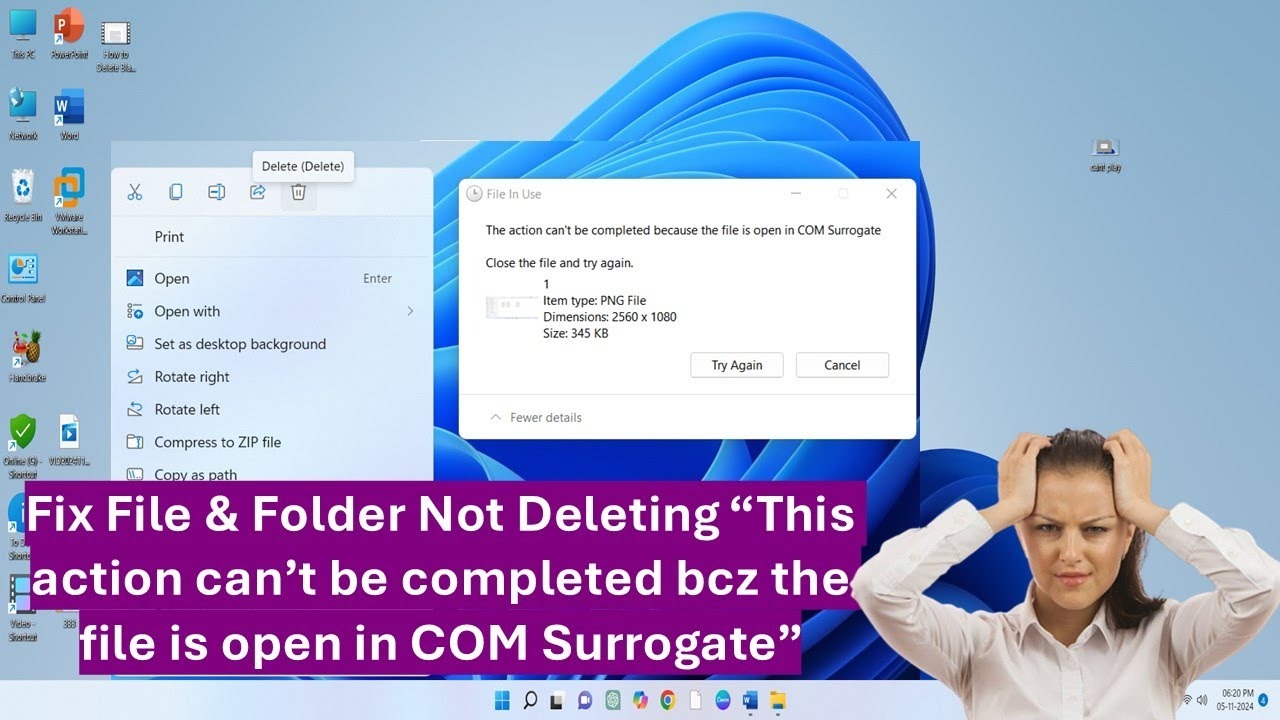
If you’ve ever tried to delete, move, or rename a file on your Windows computer and been met with the frustrating error message “File is open in COM Surrogate”, you’re not alone. This is one of those oddly worded Windows errors that can leave even experienced users scratching their heads.
In this comprehensive guide, we’ll explain what “file is open in COM Surrogate” means, why it happens, how to fix it, and what you should know about COM Surrogate processes. Whether you’re a casual PC user or someone trying to troubleshoot an ongoing issue, this article will help you understand and resolve this common Windows problem with ease.
What Is COM Surrogate?
To understand the error, we first need to understand COM Surrogate.
COM stands for Component Object Model, a Microsoft technology that allows software components to communicate. It’s used widely in Windows to allow programs to load and interact with things like thumbnails, video codecs, and shell extensions.
COM Surrogate (dllhost.exe) is a background process that runs COM objects outside the main process. This way, if the COM object crashes, it won’t bring down the program that was using it. It’s essentially a host process that lets Windows and third-party apps handle files (especially media) safely.
So, when you get the “file is open in COM Surrogate” error, it means that Windows is still using that file inside this COM environment, and therefore, it can’t be modified at that moment.
When Does This Error Occur?
The “file is open in COM Surrogate” message usually appears when you’re trying to:
-
Delete a video or photo file
-
Rename or move a file from one folder to another
-
Access a file that’s currently being previewed
-
Work with a folder containing thumbnails of media files
This often happens with media files like .mp4, .avi, .mov, or .jpg, because Windows Explorer is trying to generate a preview thumbnail using COM Surrogate.
Why It Happens
There are several reasons the “file is open in COM Surrogate” error might occur:
-
File Explorer preview is active
When you click on a media file, Windows Explorer might generate a preview using COM Surrogate, which locks the file temporarily. -
Faulty or outdated codecs
Windows relies on codecs to display certain file types. If these are corrupted or outdated, it can cause COM Surrogate to hang or keep the file locked. -
Third-party software conflict
Programs like media players or image editors can interact with the file using COM Surrogate and fail to release it properly. -
Malware or corrupted system files
In rare cases, malware disguising itself as COM Surrogate (dllhost.exe) or corrupted system components can cause persistent issues.
How to Fix the “File Is Open in COM Surrogate” Error
Now that we know what causes it, let’s look at the best solutions to fix or bypass the “file is open in COM Surrogate” error.
1. Close File Explorer Windows
The simplest fix is to close all File Explorer windows and try again. This often stops the preview process and releases the file.
2. Disable Preview Pane in File Explorer
If File Explorer is previewing the file, you can stop this behavior.
-
Open any File Explorer window.
-
Click the View tab (or use the top bar in Windows 11).
-
Disable Preview pane.
This prevents File Explorer from automatically loading previews using COM Surrogate.
3. End COM Surrogate Process from Task Manager
This is a direct but safe way to release the file.
-
Press Ctrl + Shift + Esc to open Task Manager.
-
Scroll down and look for COM Surrogate (or dllhost.exe).
-
Right-click on it and select End task.
-
Try deleting or modifying the file again.
Note: If multiple COM Surrogate processes are running, ending one might not be enough. Be cautious not to end other critical Windows processes.
4. Restart Your PC
If the above methods don’t work, restarting your computer can release any file locks. This is especially useful if COM Surrogate is stuck or unresponsive.
5. Update Codecs
Outdated or broken media codecs can cause the COM Surrogate process to malfunction.
-
Download the latest K-Lite Codec Pack or update any media software you’re using (like VLC).
-
Make sure your graphics drivers are also up to date via Windows Update or the manufacturer’s website.
6. Run System File Checker (SFC)
System file corruption can cause errors involving COM Surrogate.
-
Open Command Prompt as Administrator.
-
Type:
sfc /scannowand press Enter. -
Let it scan and fix any issues it detects.
7. Use a Third-Party File Unlocker
If you’re still getting the “file is open in COM Surrogate” message, consider using a file unlocker tool like:
-
Unlocker
-
LockHunter
-
IObit Unlocker
These tools can identify which process is locking the file and release it for you.
Is COM Surrogate a Virus?
This is a common question because many users become alarmed when they see “dllhost.exe” running in the background.
COM Surrogate itself is not a virus—it’s a legitimate part of the Windows operating system. However, some malware can disguise itself using the same name.
How to Check:
-
Open Task Manager.
-
Right-click on COM Surrogate > Open file location.
-
If it’s in
C:\Windows\System32, it’s legit. -
If it’s in any other folder, scan your system with Windows Defender or another antivirus tool.
How to Prevent This Error in the Future
You can avoid the “file is open in COM Surrogate” error by:
-
Keeping your Windows OS updated.
-
Disabling the preview pane for folders with media files.
-
Avoiding unnecessary third-party shell extensions.
-
Regularly scanning for malware.
-
Updating or uninstalling problematic codecs.
It’s also a good idea to avoid working directly in folders that contain large or high-resolution videos, as they take longer to preview and can lock the file in COM Surrogate longer.
Final Thoughts
The “file is open in COM Surrogate” error may be confusing at first, but it’s ultimately a protection mechanism built into Windows to safely process and preview media files. While it can be annoying, especially when you just want to delete or move a file, the fixes are generally simple.
Whether it’s a stuck preview pane, outdated codec, or system glitch, following the methods above can help you regain control of your files and eliminate the issue. Most importantly, knowing what COM Surrogate is removes the mystery from the error and helps you troubleshoot it without panic.
So the next time you see the dreaded “file is open in COM Surrogate” message, you’ll know exactly what to do.
Frequently Asked Questions (FAQs)
1. What does “file is open in COM Surrogate” mean?
This error means that Windows is currently using the COM Surrogate (dllhost.exe) process to preview or process the file, and it cannot be modified or deleted until that process is completed or released.
2. Is it safe to end the COM Surrogate process?
Yes, in most cases it’s safe to end the COM Surrogate (dllhost.exe) process via Task Manager to release a locked file. However, be cautious if other programs are actively using it.
3. Can malware disguise itself as COM Surrogate?
Yes, some malware may mimic the COM Surrogate process. You can verify its legitimacy by checking its location—if it’s not in C:\Windows\System32, you should run a malware scan.
Read More :-
